


Whether on the radio, in a club, or at a beach bar: suddenly you hear an amazing song. The melody sounds familiar, but the song title and artist just won’t come to mind. Maybe you even heard a completely new track – an earworm you absolutely want to hear again. But usually all you remember is a fragment of the lyrics, the chorus melody, or a hook. Okay, no panic! With our tips, you’ll definitely manage to find the song you’re looking for.
Do you want to search directly by lyrics? Then you can do that right here from now on:
With activating the search, you consent – as described here – to data processing by Google.
Shazam & Co. – find a song with music recognition apps
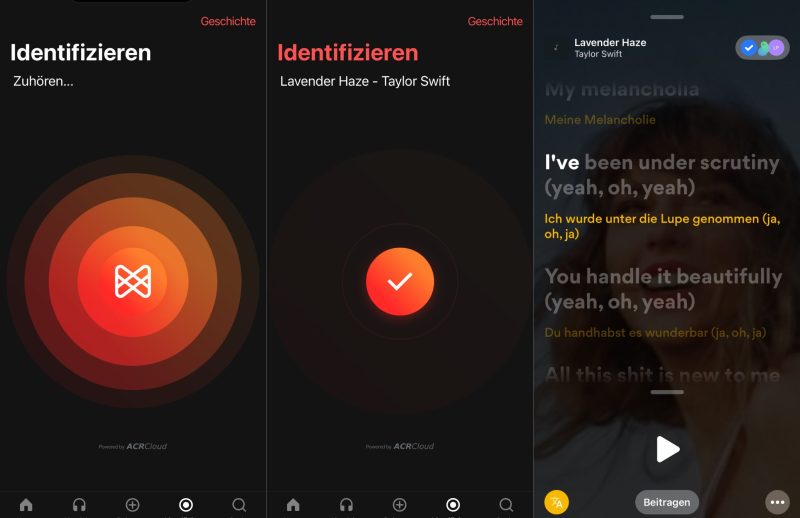
Free music recognition apps like ShazamOpens in new tab or BeatfindOpens in new tab make it very easy these days to find out the title and artist of unknown songs. While the unknown music is playing, you simply start a recognition app. Using the microphone built into your smartphone, the app records, among other things, the sound frequencies and creates an “acoustic fingerprint” of the unknown song. This is then compared with a database. If the app finds matches, it gives you the answer to the question: “What’s this song called?”
Shazam
Shazam is the best-known music recognition app and has a huge database with many millions of songs. It also shows additional info about what you’re hearing – conveniently including purchase options. Plus, you can open the song directly in streaming services like Apple Music or Spotify and add it to your playlists.
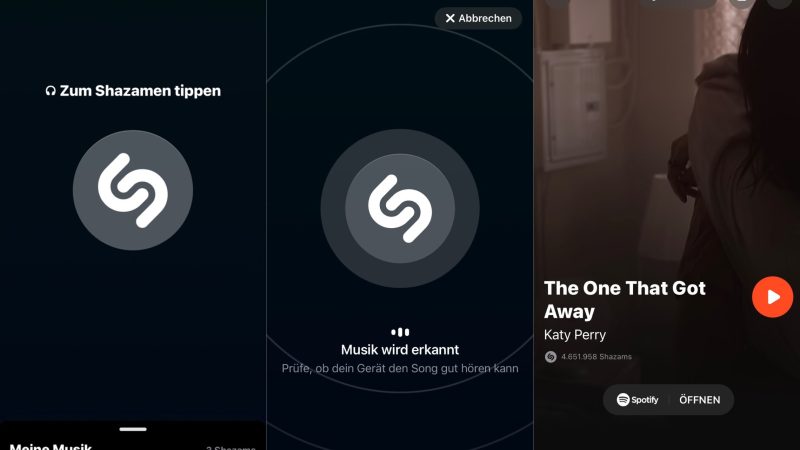
However, as with any music recognition app, there are some limitations: because the databases aren’t stored locally but on servers on the internet, song recognition basically only works with an internet connection. Shazam & Co. also struggle when there’s not just music coming from the speakers, but also voices and other background noise. In general, you’re dependent on your smartphone for music recognition apps. Shazam does, however, already offer an extension for the Chrome browserOpens in new tab.

The app also has a kind of offline mode. Unknown songs are first recorded and then matched with the database as soon as an internet connection is available again. Practical in clubs, perfect on a remote beach!
Tip: Shazam offers a Top 200 playlist with the songs that were shazamed most frequently in the current week! There’s a global playlist, but you can also search by country. It’s a great way to discover new music or maybe recognize a song you were looking for. Take a look and find your new favorite song!Opens in new tab
Shazam: Pros and cons
- Easy to use, very practical
- Free
- Huge database
- Additional info and links to streaming services when there’s a match
- Recording also possible offline
- Problems with side and background noise
SoundHound
The music recognition app SoundHoundOpens in new tab basically works like Shazam, but additionally advertises that it can recognize whistled or hummed melodies. That doesn’t always work, but it’s definitely worth a try. The more well-known the song and the better your own ability to hit the notes, the higher the chances of success. Just like Shazam, SoundHound is directly connected to streaming services like Spotify. With MidomiOpens in new tab, the makers of SoundHound also offer a browser extension.
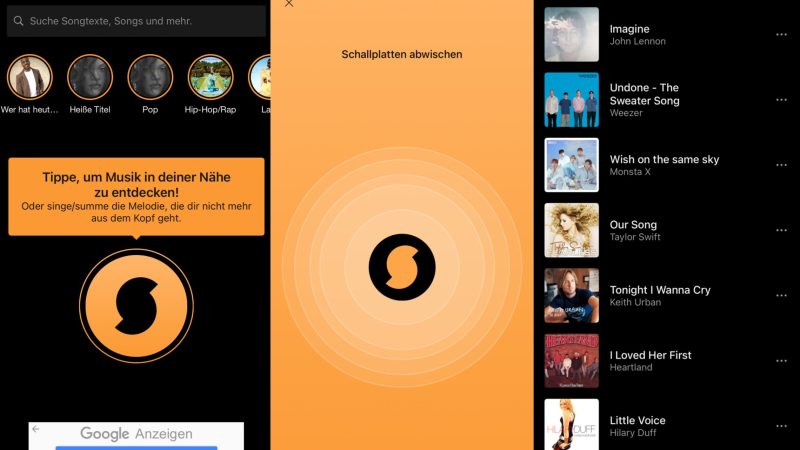
SoundHound: Pros and cons
- Easy to use, very practical
- Free
- Recognition often faster than with Shazam
- Sometimes works with singing, whistling, or humming the melody
- Additional info and links to streaming services when there’s a match
- Problems with side and background noise
- Online use only
Another browser-based alternative is AHA MusicOpens in new tab. Extensions like these work similarly to the apps and are especially practical when you’re listening to music on your computer.
If you use DeezerOpens in new tab for streaming music, you can download the associated SongCatcher appOpens in new tab. With it, you can recognize music and add tracks directly to your favorites or playlists without having to open the Deezer app. Most other music recognition apps mainly connect with Apple Music or Spotify. Unlike SongCatcher, however, these apps can be used for free even without a subscription to a streaming service.
Humming to your smartphone – with Google Assistant, Siri, and Alexa
By now, there’s also another way to search for a well-known piece of music. Voice assistants like Google Assistant, SiriOpens in new tab, or Alexa have learned to understand humming: if you activate the voice assistant and then start humming the melody, you’ll ideally get the song you’re looking for shown quickly. Siri uses Shazam to recognize music and allows access to it even if the Shazam app isn’t installed.
It’s important to note that not all smartphones come with built-in music recognition by default. Many Android smartphones rely on third-party apps. However, you can download the Google app on any smartphone and use the Google Assistant.
Stream any song you want: Bluetooth speakers from Teufel
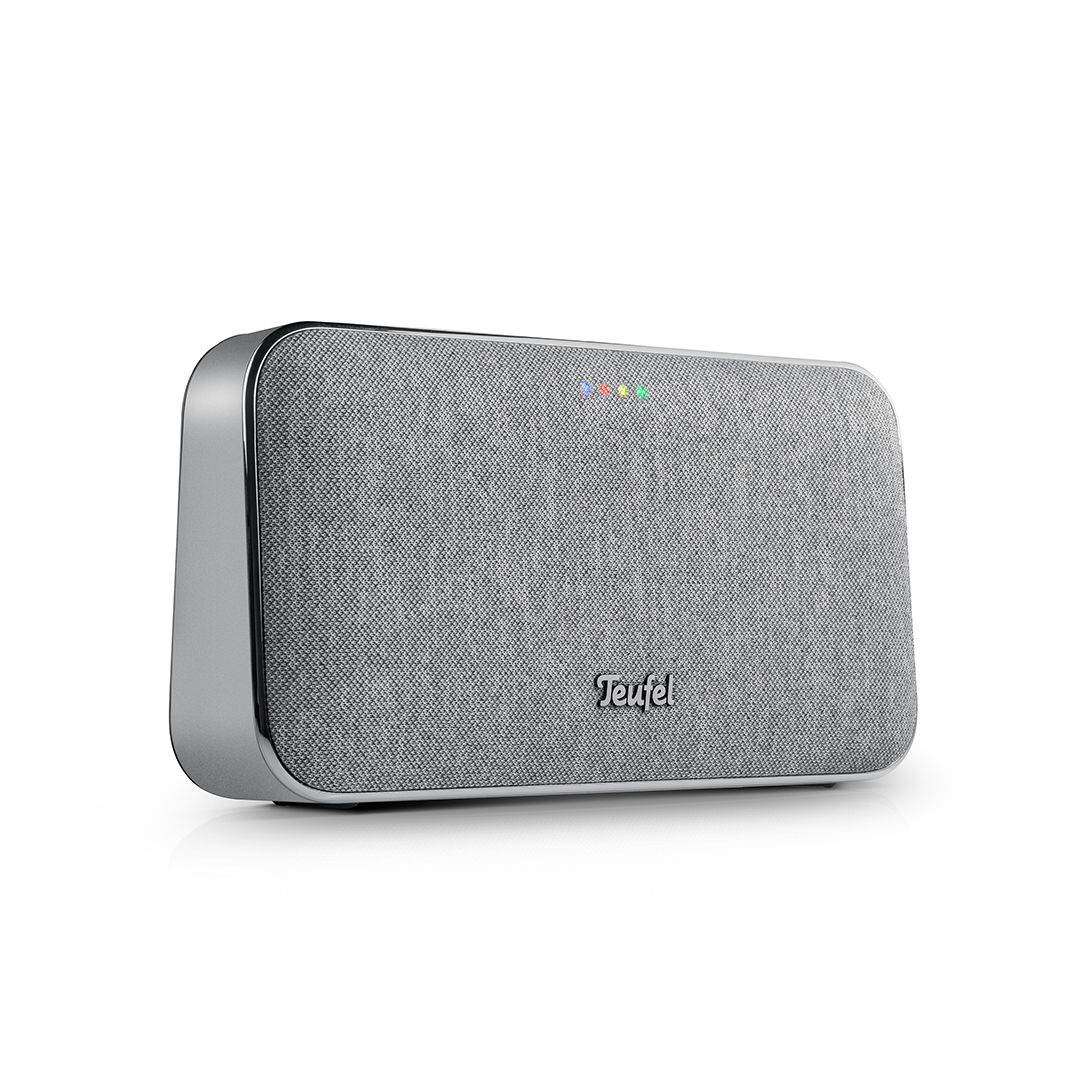
MOTIV® GO VOICE
299,99 €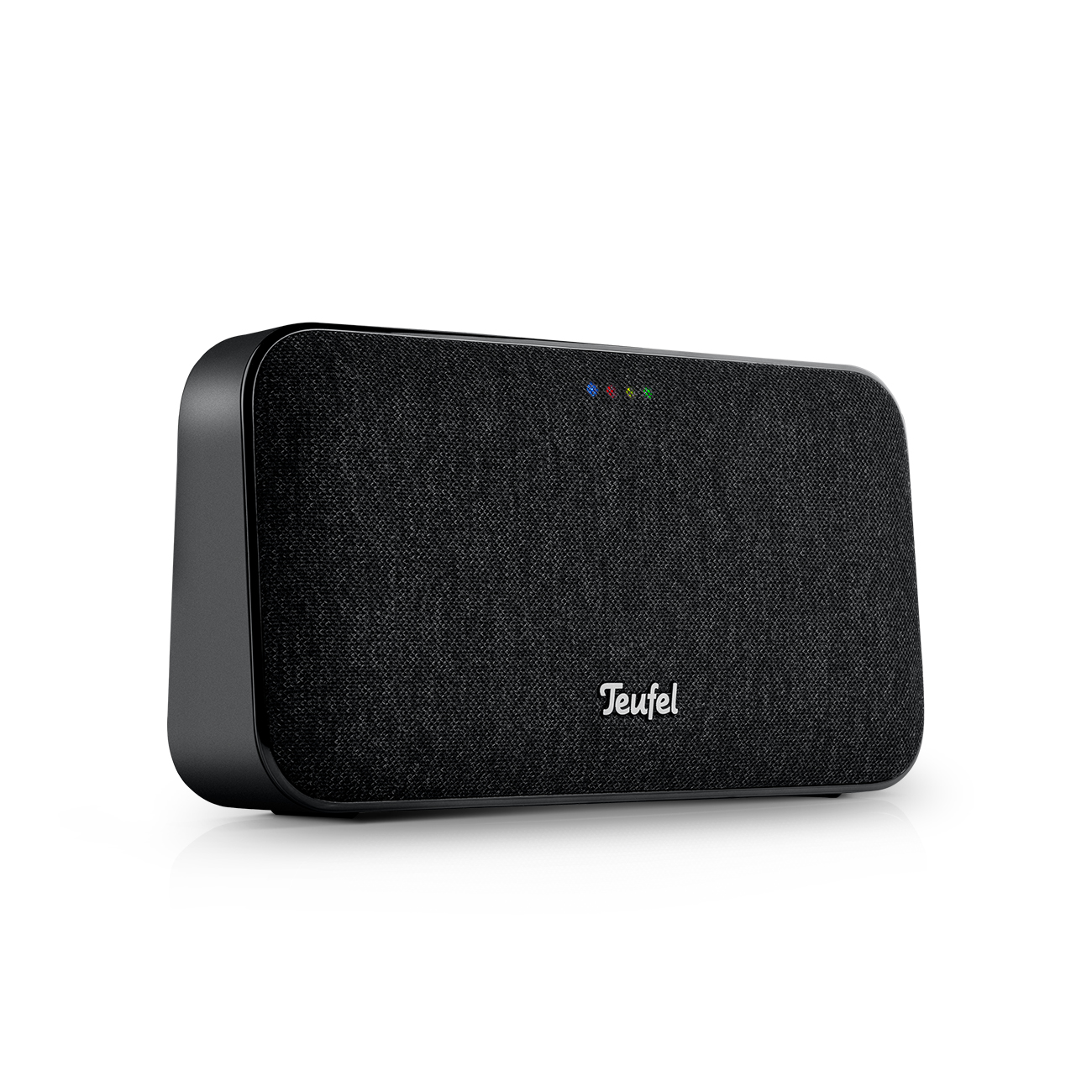
MOTIV® GO VOICE
299,99 €With a sense of touch – Musipedia recognizes rhythm by key taps
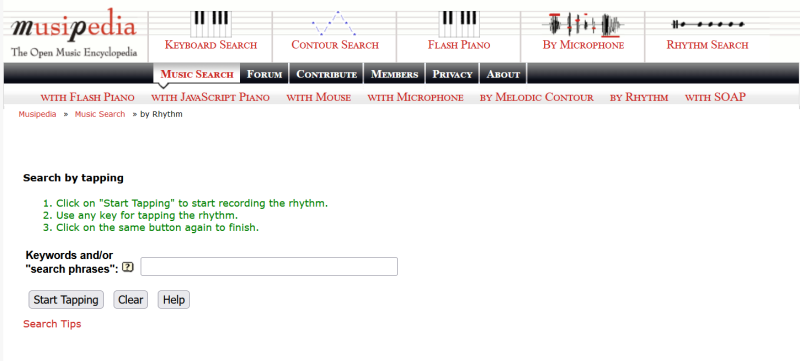
“What’s the song called?” “The song is called ‘Let it be’.” Well, unfortunately it’s not quite that easy. But if you have a sense of rhythm, you can go on a song search at musipedia.orgOpens in new tab. There, you can tap the rhythm using the space bar and match it with the database. Alternatively, you can whistle a melody to the open-source platform.
Find songs by lyrics: how to search for a song using the lyrics
If you still remember at least parts of the lyrics, that’s also a great starting point to answer the question “What’s the song called?”. If you’re a Spotify user, it’s very easy: you can search directly for the text fragment you still remember. You’ll usually get a range of possible results. Either it clicks right away and you know which song you were looking for, or you listen through the search results. This way, you can also easily discover new music.
Speaking of discovering music: always check out the Top Charts on Spotify!
You can also try the classic Google search with text fragments. It may help to add terms like “song” or “lyrics” to get closer to the right result. There are also a number of large lyrics databases online. One of the biggest is GeniusOpens in new tab. What’s special here: you don’t just find countless lyrics, but also comments and interpretations from the community.
Tip: If you put the text snippet you’re looking for in quotation marks on Google, you’ll get more precise results.
A dedicated lyrics app is MusixmatchOpens in new tab. There, you can simply enter a line or text fragment you remember – the app delivers the matching song including links to Spotify and YouTube. The highlight: the lyrics are synchronized with the song you’re listening to, making Musixmatch great for karaoke singing. Plus, lyrics can be translated into different languages or saved offline. That makes the app a great addition to your preferred streaming service. But be careful: the app costs €36.99 per year. You can try it free for 7 days.
AI-powered song search with ChatGPT
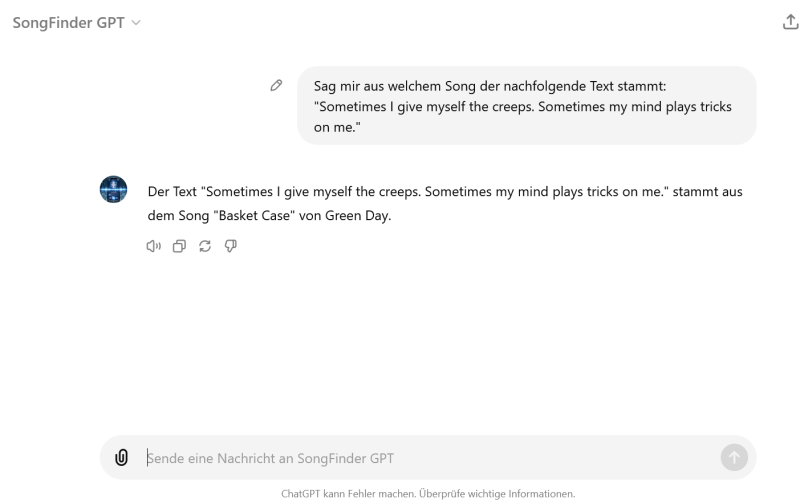
The chatbot ChatGPT uses AI to communicate via text-based messages and even images. If you want to find a song you’ve heard before, you can give the chatbot a few lines from the lyrics. The more information you provide, the better it can help you find the song you’re looking for. If you don’t know the exact title, a description of the song or the artist can also help. This feature can be used for free.
For ChatGPT Plus users, there are two practical add-ons that further improve the search:
- SongFinder: This add-on extends the functionality of the free version of ChatGPT with specific tools tailored to music search and recommendations. Users can search for songs directly within their chat conversations without switching applications. It also offers advanced features like a larger song database, more precise recommendations, and additional options to fine-tune the search. For example, it can also recognize music from Instagram and TikTok clips.
- Music GPT: This add-on enables not only searching for lyrics, but also generating personalized music recommendations based on user preferences, analyzing songs, and creating playlists. Additionally, MusicGPT can be used to develop or improve creative ideas for songs, lyrics, or melodies by helping users shape musical concepts. Install the Music GPT add-on nowOpens in new tab.
Finding new music in forums and social media
On platforms like Facebook, X (formerly Twitter), or Reddit, there are numerous music groups and communities that specialize in identifying songs. Simply post a description of the song, a few lines of lyrics, or a link to an audio sample. Other users often know the song and can help you out. Specialized forums like “tipofmytongueOpens in new tab” on Reddit are a great place to go. The community there is usually very helpful and experienced in finding songs.
TikTok can also become a treasure trove for new songs: just enter keywords in the search function, and you’ll be shown matching videos and sounds. This is how the song “GOLDEN” from the Netflix film K‑Pop Demon Hunters went viral – many fans first found it through short clips and challenges before discovering the full track.
On Spotify, you’ll find current playlists with viral TikTok songs:
Rediscover forgotten songs with Last.fm
With the tracking feature of Last.fmOpens in new tab, you can easily rediscover forgotten songs. First, download the Desktop Scrobbler or the mobile app (for Android and iOS). Sign up on Last.fm and connect your account with your preferred music streaming services like Spotify, Apple Music, or Deezer. Last.fm automatically tracks your listening habits and creates a history of all songs played. Note, however, that the scrobbler isn’t yet supported by many providers like YouTube or SoundCloud. You can browse your listening history at any time to find the song you’re looking for. Last.fm also offers personalized recommendations based on your music taste, so you don’t just rediscover old favorites, but also get to know new music. This way, you keep track of your entire music collection and find forgotten songs effortlessly.
Finding a music video: here’s the best way to do it
Sometimes there’s another problem: what if you’re looking for music – or a very specific music video – but can’t remember the song title? Don’t worry, there are solutions for that too. Either you identify the currently playing song with an app like Shazam or SoundHound and then search for the corresponding music video. Or, with a bit of luck and research, you’ll find it using search engines like Google or YouTube. Sometimes it’s enough to enter individual lines of lyrics – if you also remember the artist and genre, even better!
With Teufel Streaming, always on air
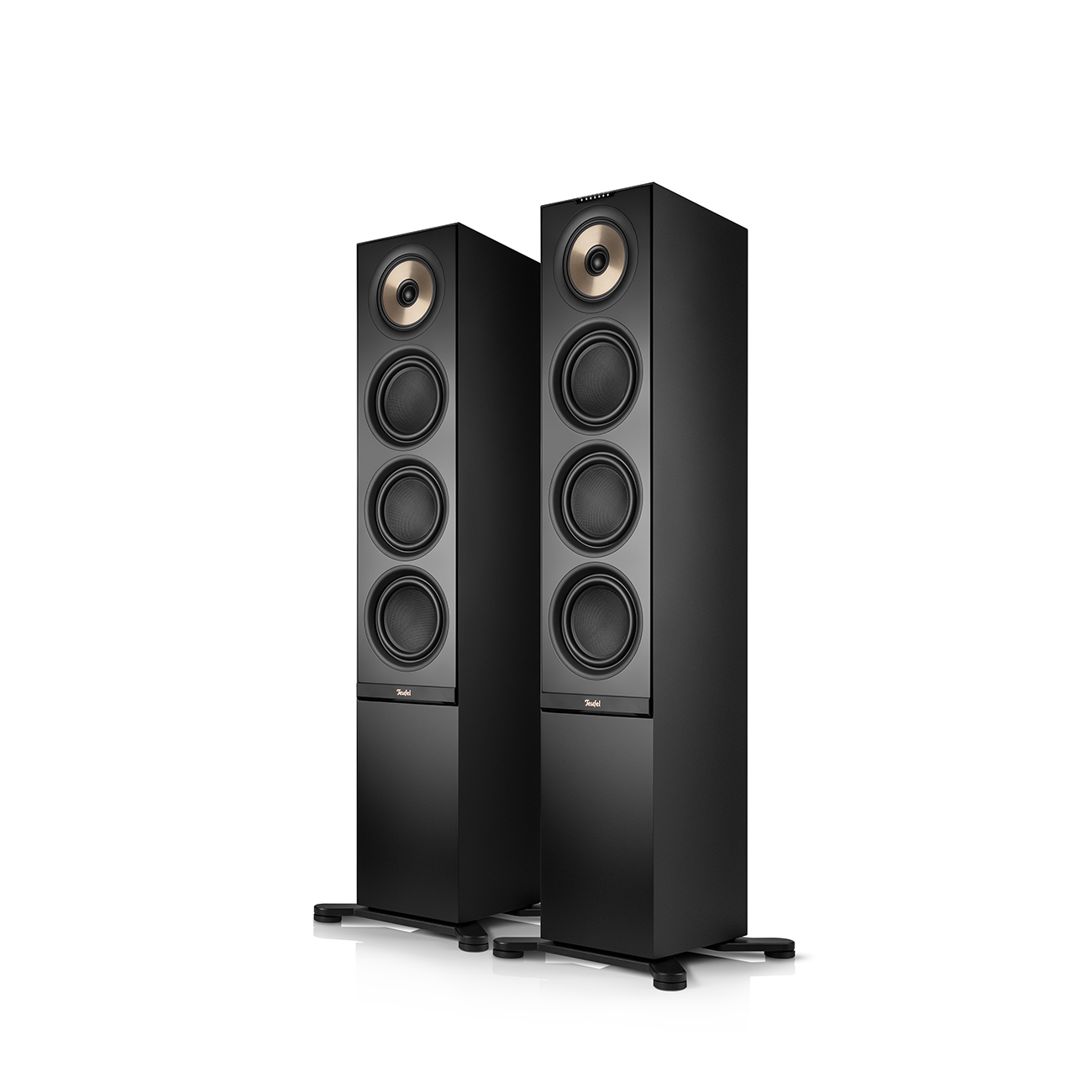
▶ STEREO L 2Opens in new tab: Stage sound for your home with 2 active floor-standing speakers including a 3‑way system, cutting-edge DSP technology, and extensive connectivity for top streaming sound via Wi‑Fi or Bluetooth.
▶ MUSICSTATIONOpens in new tab: The all-rounder in our lineup when it comes to hi-fi. The internet radio impresses with extensive streaming functions, Bluetooth 5.0 with aptX™, DAB+, a CD drive – and all of that with a wide sound thanks to Dynamore Ultra technology.
More streaming speakers from Teufel

Lyrics to laugh about: the funniest misheard lyrics
Do you know this? You sing along to your favorite song with full conviction and only later realize the lyrics were actually completely wrong. Oops… embarrassing! But don’t worry, it happens to the best of us. Sometimes we just don’t understand every word in songs (not even in German!). Our brain then often invents something of its own – and pretty funny – the so-called “misheard lyrics”. We’ve put together some of the funniest misheard lyrics for you:
Song: “We Built This City” by Starship
Misheard: “We built this city on sausage rolls”
Original: “We built this city on rock and roll”
Song: “I Want to Hold Your Hand” by The Beatles
Misheard: “I want to hold your ham”
Original: “I want to hold your hand”
Song: “Hope of Deliverance” by Paul McCartney
Misheard: “Hau auf die Leberwurst”
Original: “Hope of Deliverance”
Song: “Dancing Queen” by ABBA
Misheard: “See that girl, watch her scream, kicking the dancing queen”
Original: “See that girl, watch that scene, diggin’ the dancing queen”
Song: “Clarity” by Zedd ft. Foxes
Misheard: “’Cause you are the piece of meat / I wish I didn’t eat.”
Original: “’Cause you are the piece of me / I wish I didn’t need.”
Frequently asked questions about this topic
– Minimize background noise: hold the microphone close to the source.
– Hum evenly and clearly: with Google or SoundHound, rhythm matters more than perfect pitch.
– Remember song fragments: lines of lyrics, distinctive instruments, or beats help with the search.
– Keep apps up to date: updates improve recognition rates.
Yes! With Google “Hum to Search” or SoundHound, you can simply hum or whistle. The AI matches your melody with millions of songs and shows you the most likely results – even if you don’t hit it perfectly. Tip: humming for 10–15 seconds increases the hit rate.
Yes, several:
Google Assistant: ask “What song is this?” – works directly via voice command.
Browser tools like AHA Music or AudioTag: upload an audio snippet and get the title.
Community platforms like WatZatSong: upload an audio sample and let other users help.
Use lyrics search engines like WieheisstdasLied.de or Lied-Erkennen.de. Simply enter the line you remember. Alternatively, use Google with quotation marks, e.g. “lyrics quote” + “lyrics”. This often gets you the title in seconds.
Conclusion: no song stays lost
- Music recognition apps like Shazam identify currently playing songs and sometimes offer an offline function for later recognition.
- The SoundHound app can find whistled or hummed melodies using a database. Google offers similar functionality.
- Song search also works very easily with voice assistants like Alexa, Siri, and Google Assistant.
- On Musipedia.org, you can tap the rhythm on the space bar and match it.
- Using Google and text databases like Genius, or lyrics apps like Musixmatch, you can search for a song using text fragments.
Have you tried all the tips and still haven’t found it? Feel free to leave a comment under this post! Maybe we or the community can help you with the search. You can also talk to your friends or family members about it.
- Screenshots: Teufel editorial team
- Radio station logos: Wikimedia, Public Domain


Leave a Reply